What happens when someone connects to your PC with FlashDesk.
This page covers the full picture — for the person receiving help and the person giving it. Five steps from download to session, how the relay works, what data flows, and how to end a session cleanly.
FlashDesk will never telephone you.
If someone calls you and asks you to download FlashDesk so they can "fix" your computer, this is a scam. Legitimate helpers only connect when you start the conversation and ask them to help. Hang up.
What actually happens during a FlashDesk session.
Five steps — one for your helper, four for you. Nothing happens to your computer without you pressing a button.
-
Your helper downloads FlashDesk on their computer.
Your helper goes to the FlashDesk download page and downloads the same single file you will. There is no installation step on their end either. They open the file and FlashDesk is running.
Both sides must be running FlashDesk for anything to happen. There is no web interface, no browser plug-in, and no third-party app involved on either end.
Both computers must be running Windows. FlashDesk requires Windows 10 x64 or Windows 11 x64 on both machines — yours and your helper's. FlashDesk does not run on macOS, Linux, or mobile. If your helper is on a Mac or phone, they cannot use FlashDesk. -
You download FlashDesk on your computer.
Go to the download page and download FlashDesk.exe. Save it anywhere — your Desktop or Downloads folder is fine. Then double-click it. No installation wizard runs. No administrator password is asked for. The window opens immediately.
System requirements: Windows 10 x64 or Windows 11 x64. No .NET required. The file is about 70 MB. The Windows runtime FlashDesk needs is bundled inside it — that is why the file is larger than you might expect. There is nothing else to install and no separate runtime to download.Windows will show a security warning when you first open the file. This is expected — Windows shows this message for any downloaded .exe that has not yet built up a wide install history. Here is exactly what to click. -
Open FlashDesk — your 9-digit code appears.
When FlashDesk opens, you will see a large 9-digit number. This is your FlashDesk ID. It is generated fresh every time you open the program — it is not the same number twice in a row, and it is not something you chose or registered.
The number is formatted in three groups of three for easy reading aloud over the phone. It functions like a phone number for your current session — your helper dials it to find you.
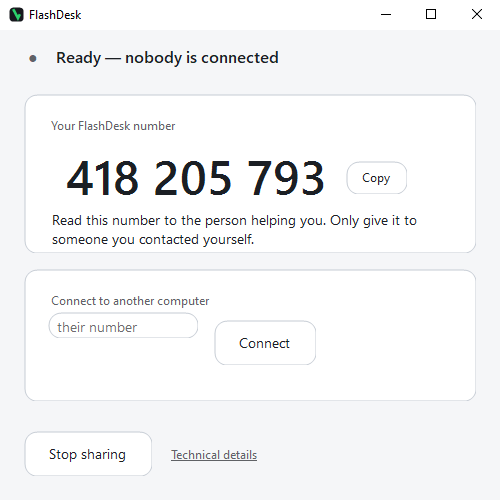
The FlashDesk window showing the 9-digit session ID. The number shown is an example — yours will be different each time you open the program. Your ID — read this aloud to your helper:
4 8 2 · 9 1 7 · 3 0 5
This is an example. Your number will be different.
-
Read your 9-digit code to your helper over the phone.
Tell your helper the number. They type it into FlashDesk on their end and press Connect. FlashDesk sends their request through a relay server — your helper's computer does not make a direct connection to yours. The relay finds your session and forwards the request. Your computer receives it. Nothing has happened yet. No screen has been shared. No connection is open.
Verify the number before you press Accept.
FlashDesk shows you your helper's 9-digit ID — not their name. Names can be invented; a 9-digit ID is generated by their copy of FlashDesk and cannot be faked. Before pressing Accept, ask your helper to read their number back to you and confirm it matches what FlashDesk is showing on your screen. If the numbers do not match, press Reject. -
A dialog appears — read it, then press Accept.
FlashDesk shows a dialog with two equally-sized buttons: Accept and Reject. The Accept button is disabled for the first three seconds so you have time to read it. The connected helper's input cannot reach that dialog — the person asking for access cannot also press Accept on your behalf.
Connection request from:
391 · 204 · 817
Accepting lets this person see your screen and control your mouse and keyboard. You can end the session at any time by closing this window or pressing Disconnect.Accept button active in 3 seconds…Reject AcceptOnce you press Accept, a coloured bar appears at the top of your screen and stays there for the entire session. The bar shows three things: your helper's 9-digit ID (so you always know who is connected), the elapsed session time, and a Disconnect button. Pressing Disconnect ends the session immediately — no confirmation step. The bar belongs to FlashDesk running on your own computer; there is nothing the connected helper can send that touches or hides it.
How the connection actually works.
This section is for technical readers who want to understand the relay architecture, what data travels where, and what the relay server can and cannot see.
Sends screen frames.
Sends input events.
Why a relay?
Most home and office computers sit behind a router that uses Network Address Translation (NAT). Two computers behind different NAT routers cannot reach each other directly without special setup. The relay server solves this: both copies of FlashDesk connect outward to the relay, and the relay threads the packets between them. No firewall rule changes are needed on either side, and neither computer needs to accept incoming connections from the internet.
What the relay can and cannot see
The connection between the two copies of FlashDesk is encrypted end-to-end using TLS 1.3. The relay server forwards packets it cannot decrypt. It sees the source and destination session IDs (the 9-digit numbers) and the size and timing of packets — the same metadata any router on the path sees. It does not see your screen contents, your mouse movements, your keyboard input, or the names or contents of any files.
What travels in each direction
| Direction | Data |
|---|---|
| Your PC → | Compressed, encrypted screen frames — a capture of your display, compressed and sent continuously while the session is open. Only the display area that has changed since the last frame is re-sent (delta encoding). |
| ← Helper | Encrypted input events — mouse position, button clicks, scroll events, and keystrokes. These are the only things that flow from the helper's computer to yours. They cannot cause any action that your own mouse and keyboard could not cause. |
| Your PC → | File data (only after explicit permission) — raw bytes of the specific file the helper has asked to copy, if you have granted file-access permission and confirmed the transfer. No other file data ever leaves your computer. |
| ← Helper | Inbound file data (only after explicit permission) — if your helper sends a file to you, the bytes of that file arrive here. You are shown the file name and destination before anything is written to disk. |
| Relay only | Session IDs and packet metadata — the 9-digit IDs used to route packets, plus packet size and timestamp. No content. The relay does not log session contents and discards routing data when the session ends. |
Your ID is public. Your cryptographic key is not.
Your 9-digit ID is what you read aloud — it is how your helper finds your session, like a phone number finds a house. But possessing the ID alone is not enough to connect.
When FlashDesk starts, it generates a cryptographic key on your device. This key never leaves your computer — it is never transmitted, never displayed, and never stored anywhere the relay can access. When a connection request arrives claiming your ID, the relay issues a cryptographic challenge. Only the copy of FlashDesk that holds the matching key can answer it correctly. An attacker who intercepts your 9-digit ID during a phone call cannot use it to connect to your session.
Session lifetime and what happens if the connection drops
A session begins when you press Accept and ends the moment FlashDesk's window is closed or the Disconnect button is pressed on either side. At that point the relay terminates the routing entry, both ends receive a clean disconnect signal, and your helper's view goes blank immediately.
If the network drops mid-session — a Wi-Fi hiccup, a cable unplugged — FlashDesk detects the disconnect immediately. Your screen capture pauses and your helper's view freezes. A 90-second window opens. If the same helper reconnects within 90 seconds, the session resumes without a new Accept dialog. This is intentional: forcing a re-accept every time a home Wi-Fi blips would make the tool unusable on unstable connections. After 90 seconds the window closes and the session is gone — a full new session (new ID, new Accept dialog) is required for anyone to connect.
Ending the session.
Close FlashDesk or press Disconnect.
When your helper is finished, close the FlashDesk window or press the Disconnect button in the session bar at the top of your screen. The session ends immediately. Your helper's view goes blank — they can no longer see or control anything on your computer. The relay drops the routing entry at the same moment.
They cannot reconnect without you accepting again.
Once you close FlashDesk, it is over. Your 9-digit code changes the next time you open the program. If the same person calls back and asks to connect, they will need your new code — and you will see the Accept / Reject dialog again before anything happens.
The one exception is a brief reconnect window after a network drop — see the relay section above for the full explanation.
The file panel can copy a file. It cannot delete, rename or move anything.
Accepting a session gives your helper screen access only. They cannot open your files without a second, separate permission. When that permission is given, they can browse your files and copy one to their computer, or send one of theirs to you.
Delete, rename, and move are not available in the file panel. This is not a permission level — there is no setting that unlocks them. They are a category of action the file panel was built to exclude. The file panel has exactly two operations: copy out, and copy in.
Eight things FlashDesk does — each one a specific, verifiable behaviour.
These are behaviours with concrete, observable consequences — not design intentions.
Nothing installs
It is one .exe file. There is no installer step and no administrator password is asked for — the program starts with the same permissions as any other window you open.
The ID is an address, not a key
Your 9-digit FlashDesk number is how a helper finds your session — the way a phone number finds a house. A cryptographic key, held only on your machine and never transmitted, is what proves ownership of that number. The relay challenges it on every connection attempt.
Every new session is accepted by hand
An incoming connection shows a dialog with the caller's 9-digit ID and two equally-weighted buttons, Accept and Reject. The Accept button is disabled for three seconds so it cannot be clicked immediately. While the dialog is open, the remote-control input from the connecting party cannot reach it — the person asking for control cannot also press Accept.
A session bar stays on screen, always
While anyone is connected, a coloured bar stays visible at the top of your screen for the whole session. It shows your helper's 9-digit ID, the elapsed session time, and a Disconnect button. The bar belongs to FlashDesk running on your own computer — there is nothing the connected helper can send that touches or hides it.
A log stays on your computer
Every connection — who asked, when they asked, whether you accepted or refused — is written to a plain text file on your own machine. It does not record your screen, anything you typed, or the contents of any file transferred.
File access is a second, separate question
Accepting a session lets a helper see your screen and control your mouse and keyboard. It does not let them open your files. File access needs its own separate permission, asked the first time it is needed during a session.
Copy, never delete or rename
Once file access is granted, a helper can look through your files and copy one to their own computer, or send you one of theirs. There is no delete, rename or move. Those operations do not exist in the file panel.
An arriving program is named every time
If a helper sends you an executable rather than an ordinary file, you are shown the file name and the path where it would be saved — every single time, even after you have already agreed to file access generally. There is no "always allow" for executables.
What FlashDesk deliberately cannot do.
These are not features planned for later. They are design decisions that make the program safer by making certain things structurally impossible — not restricted by a setting, but absent entirely.
No background service
FlashDesk only runs while its window is open. Close the window — everything stops. There is no process left running in the background, no way to reconnect silently, and nothing that runs at startup.
No autostart
FlashDesk does not add itself to Windows' startup list. It does not write a registry run key. It does not run when you log in. If you want it to run, you open it yourself.
Closing ends everything
Closing the window ends the session, the screen capture, and the relay connection — all at once. There is nothing left running afterward. Your helper's view goes blank immediately. The relay drops the routing entry at the same moment.
No file deletion or renaming
A helper with file access can copy a file to their computer or send one to you. Delete, rename, and move are not in the file panel. They are not behind a permission level. They do not exist.
No connecting by name or account
FlashDesk shows your helper's 9-digit number — not a name. Names can be invented; a 9-digit ID is generated by their copy of FlashDesk and cannot be faked. There are no accounts, no address books, and no persistent identifiers that survive a session.
One screen at a time
If your computer has more than one screen, your helper sees and controls only the primary display. Multi-monitor support is not available.
What the file is and what it requires.
| File | FlashDesk.exe — a single Windows executable. No installer. No companion processes. |
|---|---|
| Size | Approximately 70 MB. The Windows runtime FlashDesk needs is bundled inside the file. Nothing else needs to be downloaded or installed. |
| Platform | Windows 10 x64 and Windows 11 x64. Required on both machines. 32-bit Windows is not supported. macOS, Linux, and mobile are not supported. |
| .NET | Not required. The runtime is self-contained. |
| Admin rights | Not required to run. FlashDesk starts with standard user permissions. |
| Network | Outbound HTTPS on port 443. No inbound firewall rule needed. Works behind NAT. |
| Relay server | 139.28.36.247 — outbound HTTPS (port 443). Add to firewall or proxy allowlist if FlashDesk cannot connect in a managed corporate environment. |
| Encryption | TLS 1.3 end-to-end between both copies of FlashDesk. The relay forwards encrypted packets it cannot decrypt. |
| Persistence | None. No startup entry, no service, no background process. Closes fully when the window is closed. |
| Price | Free. No account required. |
Any questions?
If something on this page is unclear, the FAQ covers the most common questions in plain language.
Frequently asked questions
What does the session log look like? What happens if the connection drops? Can my helper type my password? It is all there.
Security warning from Windows
Windows shows a security warning the first time you open FlashDesk.exe. This is expected. We explain what it says and exactly what to click.
Download FlashDesk — free, 70 MB, nothing installs.
One .exe file. No account. No background process. Run it when you need help, close it when you are done.
Windows 10 x64 or Windows 11 x64 · No account required · No installation